
Move a Final Cut Pro library to another Mac.
Copy the library with its media, check what doesn't travel with it, then send it. Apple's steps, and a way to send a library of any size without a cloud upload.
How do you move a Final Cut Pro library to another Mac?
Select the library in the Libraries sidebar and choose File > Copy to Library > New Library. Tick “Copy media stored in external locations” so every file your project uses comes along, then move the new library to the other Mac, on an external drive or over the network. Apple's steps are below.
A library does not carry everything. Apple says your third-party plug-ins and special fonts are not moved with it, and library backups are not copied. Install the plug-ins and fonts on the other Mac with their own installers before you open the library.
Menu names and limits checked against Apple's own Final Cut Pro pages on November 16, 2026. Menus can change between versions.
Copy the library with its media, step by step
This is Apple's built-in route. Do it on the Mac that has the project.
What doesn't travel with the library
To shrink a library before moving it by hand, Apple suggests File > Delete Generated Library Files, then File > Reveal in Finder to drag the library file to your storage device. After the move, consolidate the media in the new location from the Library Properties inspector.
Three ways to get the library to the other Mac
What each one does well, and where it stops.
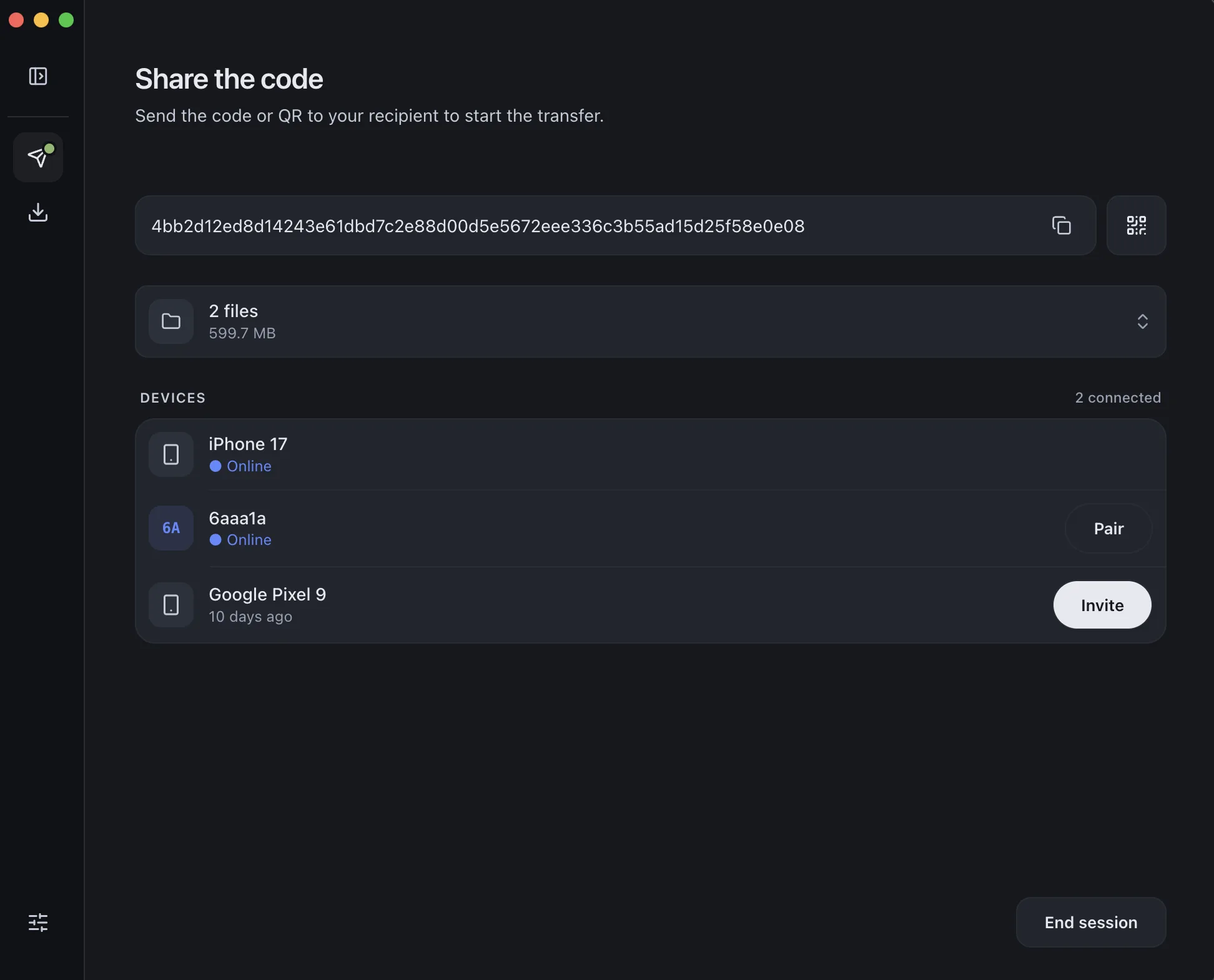
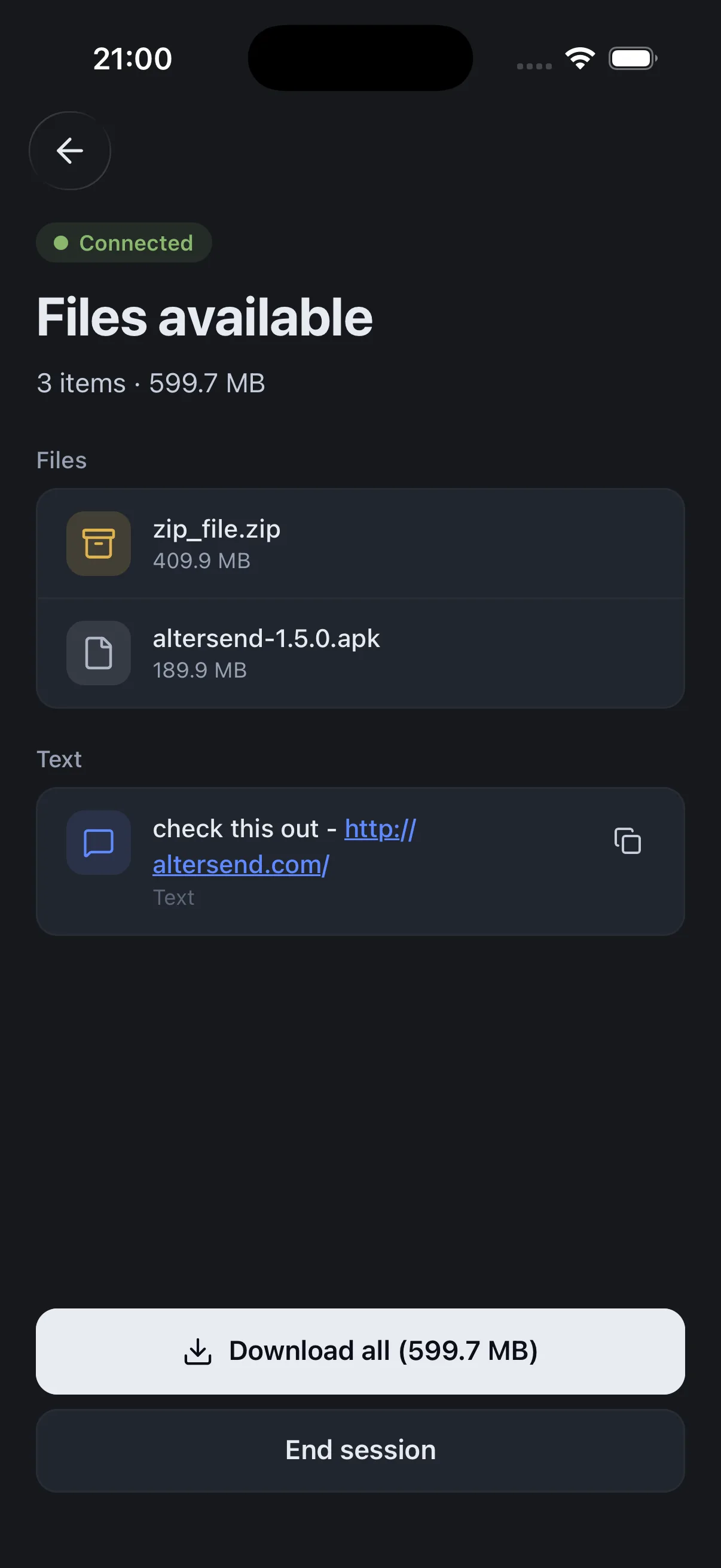
Install the free app on both Macs, pair once with a QR scan, then send the library straight from one Mac to the other, end-to-end encrypted. A library is a folder on disk, and AlterSend sends folders with their structure intact.
The catch: You need the app on both Macs, and both must be open during the transfer. If the Macs cannot connect directly, an encrypted relay carries the transfer instead, capped at 20 GB between apps, which a big library can exceed. A cable or drive then makes more sense.
Download AlterSendApple's own route. Copy the library to an external drive, carry it over, and open it from there or copy it to the other Mac's internal drive.
The catch: The drive must be formatted as APFS and cannot be one used for Time Machine backups. You have to be there with the drive, and a copy takes as long as the library is big.
Apple: move a Final Cut Pro libraryWeTransfer, Smash and similar services work for small items such as an exported XML or a library with the media left out.
The catch: WeTransfer's free plan allows 10 transfers or 3 GB in total per 30 days, and the link expires after 3 days, so a library with media will not fit without paying.
WeTransfer: plan limitsWe make AlterSend, so weigh the first option accordingly. For two Macs side by side, a drive is the simplest way and needs no software.
Send the library with AlterSend
- 01Install on both MacsFree on Mac, Windows, Linux, iPhone and Android.
- 02Scan a code to pairOne QR scan connects them. Pair once and they remember each other.
- 03Send the librarySelect the copied library in Finder and send it. It goes straight to the other Mac, encrypted, with no cloud storage in between.