
Short answer
If the old phone still works, do not reset or trade it in. Run Smart Switch again and, on the new phone, explicitly select Apps and then Secure Folder before tapping Transfer; Samsung says that is the only official way, because Secure Folder backup has been discontinued, and phones that shipped with One UI 8 cannot restore an old backup at all. If Smart Switch still skips it, move the files out of Secure Folder on the old phone, copy them across like any other files, and move them back in on the new one. If the old phone is gone and you never made an earlier Samsung Cloud backup of Secure Folder, there is no official way to get the contents back.
On this page
- First: is the old phone still working?
- Why Smart Switch left it behind
- Fix 1: Run Smart Switch again, with Secure Folder selected
- Fix 2: Move the files out, copy them, move them back
- Apps inside Secure Folder
- If the old phone is gone
- Where a vault app fits, including ours
- Before you wipe the old phone
- Questions
First: is the old phone still working?
Everything on this page depends on this. Secure Folder's contents live on the phone that created it. Samsung's own page says Secure Folder can only be accessed on the phone or tablet, not from the web or a computer, and that backing it up to Samsung's cloud is no longer available.
So if the old phone still turns on and you still know its Secure Folder code, your files are still there, and the only problem is getting them across. Stop here and keep that phone exactly as it is: do not factory reset it, trade it in or hand it back to the carrier until the new phone's Secure Folder has everything.
If the old phone is broken, lost or already wiped, skip to the section on that below. The options are much narrower.
Sources: Samsung: Use the Secure Folder on your Galaxy phone or tablet, Samsung: Cannot back up Secure Folder on Galaxy phone or tablet
Why Smart Switch left it behind
There are a few common reasons, and Samsung's pages explain most of them.
- Secure Folder was not selected
- In Samsung's own steps, Secure Folder is not part of the default transfer. On the new phone you have to open the Apps list and select Secure Folder, or open the Secure Folder entry to pick what to bring. A default or quick transfer can finish without it.
- There was no backup to restore
- Samsung says data backup is no longer available for Secure Folder. A new phone set up from Samsung Cloud gets your other data but not a fresh Secure Folder backup, because there is none.
- Restore depends on how your phone got One UI 8
- Samsung's US page says restore from a previous backup is not available in Secure Folder on devices running Android 16 with One UI 8 or higher, and to use Smart Switch instead. Samsung's Japanese page is more precise: phones that shipped with One UI 8 have neither backup nor restore, while phones updated to One UI 8 can still restore. One UI 8 also rebuilt Secure Folder on Android's private profile, which is why older advice may not match what you see.
- The transfer said it worked, and the folder is empty
- This is the case people report most in Samsung's community forums: the transfer reports success and Secure Folder opens to nothing. Samsung has not published an explanation. A second attempt with Secure Folder selected explicitly, or the manual method below, is the answer.
Sources: Samsung: Cannot back up Secure Folder on Galaxy phone or tablet, Samsung Japan: Secure Folder backup and restore (Japanese), SamMobile: One UI 8 rebuilds Secure Folder on Android's private profile (2025), Samsung Community: Help, Secure Folder hasn't transferred (user reports)
Fix 1: Run Smart Switch again, with Secure Folder selected
These are Samsung's steps. If you already transferred everything else, you can run Smart Switch again and select only Secure Folder.
- Set up Secure Folder on the new phone
Set up an empty Secure Folder and sign in to your Samsung account on the new phone first. This is not in Samsung's steps, but in Samsung's US community forum it is the step users report made a repeat transfer work, with Secure Folder then listed at the top of Apps under Custom.
- Connect the phones
Samsung supports a USB cable between the two charging ports, or wireless with the phones within about 10 cm (4 inches) of each other. If a wireless transfer already failed, try the cable this time.
- Open Smart Switch on both
On the new phone tap Receive on this phone, then Galaxy/Android, then Cable or Wireless. On the old phone tap Send from this phone.
- Choose Secure Folder explicitly
Allow the connection on the old phone. On the new phone, tap the arrow next to Apps and select Secure Folder, or tap the arrow next to Secure Folder to choose its content. Tap Done, Done, then Transfer.
- Check before you do anything else
When it finishes, open Secure Folder on the new phone and look for your files. Samsung's own last step is exactly this. Count a few albums against the old phone.
A warning before you retry: in a long Samsung community thread, several users report that after a failed transfer the Secure Folder on the old phone was empty too. Samsung has not explained it, and we cannot say how common it is. If the files cannot be replaced, copy them to a computer first with steps 1 to 3 of Fix 2, then retry Smart Switch.
Sources: Samsung: Cannot back up Secure Folder on Galaxy phone or tablet, Samsung: Smart Switch, Samsung Community: How to transfer my Secure Folder files to the S24 Ultra (user reports), Samsung Community: Help, Secure Folder hasn't transferred (user reports)
Fix 2: Move the files out, copy them, move them back
This works on every Galaxy whatever Smart Switch does, because once the files are outside Secure Folder they are ordinary files. It takes longer, and for the minutes they are outside, they are not protected, so do it somewhere private and follow step 1.
- Pause cloud backup on both phones
Files that leave Secure Folder land in the normal Gallery. If Google Photos backup or Samsung Cloud sync is on, they can upload within minutes. Turn backup off until step 6 is done. Samsung's Knox documentation also warns that photos synced to Samsung Cloud can reappear in Gallery.
- Move them out on the old phone
Open Secure Folder, open My Files, touch and hold the files, tap More, then Move out of Secure Folder. Samsung's Knox documentation gives the same option in Secure Folder's Gallery under the three-dot menu. They return to internal storage and the normal Gallery.
- Copy them across
By cable to a computer and back, by Quick Share, or by a normal Smart Switch transfer, which carries ordinary photos without any special selection.
- Move them in on the new phone
In Gallery or My Files, select the files, tap More, then Move to Secure Folder. If the option is missing, Samsung says to turn on Allow background activity while locked in Secure Folder's settings.
- Check the count
Compare the number of files in Secure Folder on both phones before deleting anything.
- Delete the plain copies
On both phones, delete anything left in the normal Gallery and empty its Recycle bin. Then turn backup back on.
Sources: Samsung: Use the Secure Folder on your Galaxy phone or tablet, Samsung Knox: Move content in and out of Secure Folder, Google Photos Help: Back up photos and videos
Apps inside Secure Folder
Secure Folder can also hold apps: a second WhatsApp, a banking app, a private browser. Samsung's steps transfer Secure Folder as a whole and do not say which app data comes with it, so each app's own login and backup is the safer route. A second WhatsApp inside Secure Folder, for example, has its own chat backup, set up from inside Secure Folder, and that backup is what brings the chats back. Check each app's backup on the old phone before you rely on the transfer.
Sources: Samsung: Cannot back up Secure Folder on Galaxy phone or tablet
If the old phone is gone
This is the hard case, and it deserves a straight answer. Samsung's pages describe only two ways into a Secure Folder's contents on another phone: Smart Switch from the old phone, or a restore from a backup made before Samsung discontinued Secure Folder backup. Samsung's pages differ on when that restore still works: the US page says not on One UI 8 or later, while the Japanese page says phones updated to One UI 8 still can and only phones that shipped with it cannot.
If you made a Samsung Cloud backup of Secure Folder in the past and your new phone did not ship with One UI 8, Samsung's restore steps are in Settings, Security and privacy, More security settings, Secure Folder, then Restore from backup. If neither applies, there is no official way to recover the contents. Be careful with recovery software that claims otherwise: the pages that rank for this problem are mostly sales pages for it, and we found no evidence any of them can read a Secure Folder from a phone that no longer exists.
If the old phone is broken but powers on, a repair shop may be able to get it running long enough for Fix 1 or Fix 2. That is worth asking about before writing anything off.
Sources: Samsung: Cannot back up Secure Folder on Galaxy phone or tablet, Samsung Japan: Secure Folder backup and restore (Japanese), Samsung: Unable to access Secure Folder on Galaxy phone or tablet
Where a vault app fits, including ours
We make AlterVault, so weigh this section accordingly. The problem on this page is that Secure Folder has no backup you control: no file you can save, and since the cloud backup was withdrawn, no copy anywhere but the phone.
AlterVault works the other way round. It writes your whole vault to one encrypted file that you save wherever you like, a computer, a drive or your own cloud storage, and that file opens on any new phone, Android or iPhone, with your code. Files inside are sealed with XChaCha20-Poly1305, with the key derived from your code by Argon2id, and there is no account and no server of ours involved. The free version holds 10 items, enough to try a restore before you trust it.
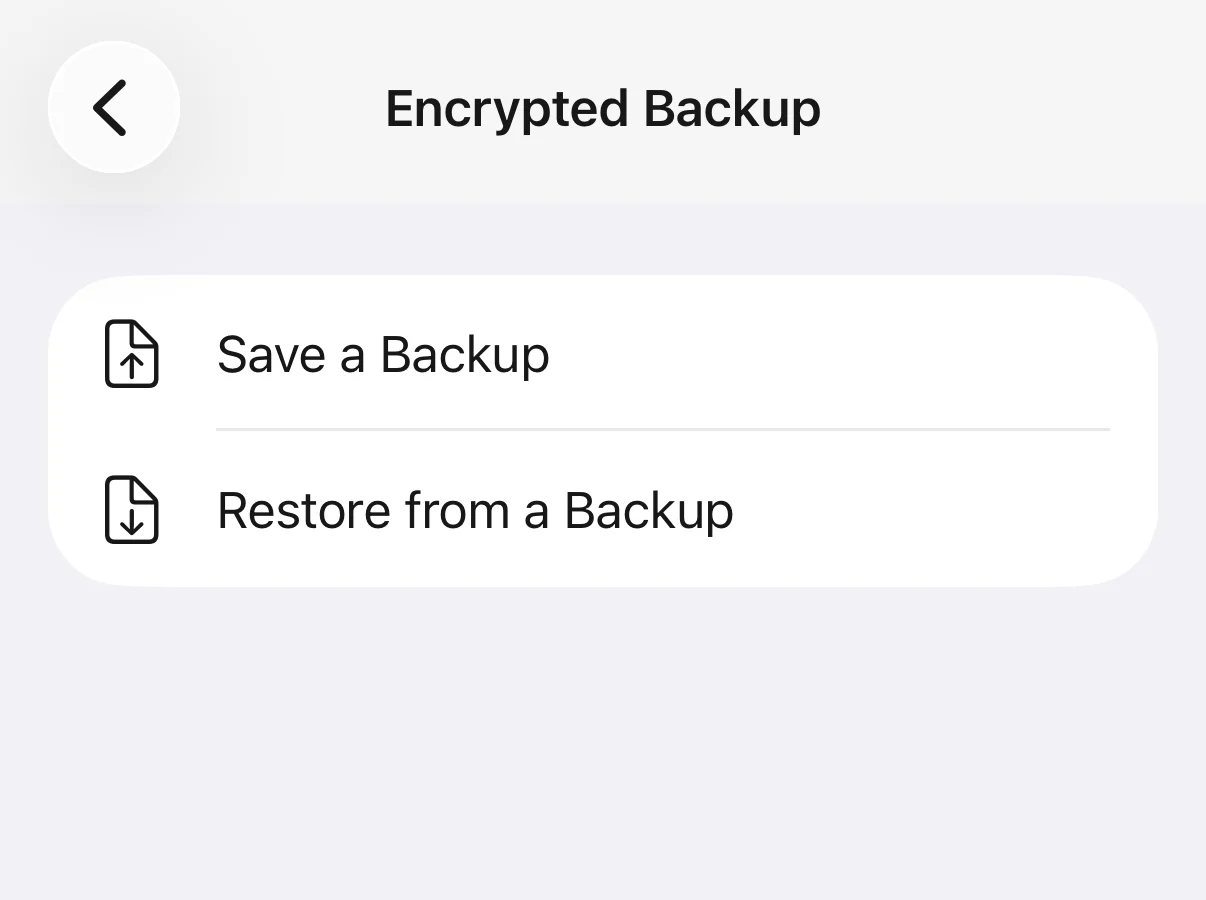
The trade-off is real: a backup file you carry around is a copy someone could take, and it can be guessed offline at about a second per try against a six-digit code, so keep it somewhere private. Making the backup is your job; the app does not do it for you. On Android the app never deletes the originals after an import, so you remove them from your gallery yourself. It sends anonymous usage events and a purchase check, never your photos, file names or code.
Before you wipe the old phone
- Open Secure Folder on the new phone
Not the transfer screen: the folder itself. Open several albums and a couple of videos.
- Compare the counts
Gallery and My Files inside Secure Folder on both phones should show the same number of items.
- Check the apps inside
Sign in to each app in the new Secure Folder and confirm its data, or its own backup, is there.
- Check nothing is left outside
If you used Fix 2, the normal Gallery and Recycle bin on both phones should be empty of those files.
- Only then reset the old phone
Once the old phone is wiped, it is the only copy gone.
Questions
Does Smart Switch transfer Secure Folder?
Yes, according to Samsung, but only if you select it. On the new phone, open the Apps list in Smart Switch and select Secure Folder, or tap the arrow next to Secure Folder to choose its content, before tapping Transfer. Then open Secure Folder on the new phone to confirm the files arrived.
Why is my Secure Folder empty after switching phones?
Usually because Secure Folder was not selected in Smart Switch, or the new phone was set up from a cloud backup, which no longer includes Secure Folder. Users also report transfers that say they worked and leave the folder empty. If the old phone still works, run Smart Switch again with Secure Folder selected, or move the files out, copy them and move them back in.
Can I back up Secure Folder to Samsung Cloud?
No. Samsung says data backup is no longer available for Secure Folder. Smart Switch from the old phone is the only official way to move its contents.
Can I restore Secure Folder from an old backup?
Only from a backup made before the feature was withdrawn, and not on a phone that shipped with One UI 8: Settings, Security and privacy, More security settings, Secure Folder, Restore from backup. Samsung's US page says restore is not available on One UI 8 or higher; its Japanese page says phones updated to One UI 8 can still restore.
My old phone is broken. Can I get my Secure Folder back?
Only if the phone can be made to power on, for Smart Switch or to move the files out, or if you have a restorable backup from before Samsung withdrew it. There is no web or computer access to Secure Folder, so with neither of those there is no official way back.
How do I move files out of Secure Folder?
Open Secure Folder, then My Files, touch and hold the files, tap More, then Move out of Secure Folder. They return to the normal Gallery and internal storage, so pause cloud backup first if you do not want them uploaded.
Will my Secure Folder apps and their data transfer?
Samsung's steps move Secure Folder as a whole and do not say which app data comes with it, so each app's own backup is the reliable route. A second WhatsApp inside Secure Folder, for example, should be backed up from inside Secure Folder before the switch.
Is there a way to transfer Secure Folder without Smart Switch?
Yes, the manual way: move the files out on the old phone, copy them across by cable, Quick Share or computer, and move them back in on the new phone. It works on any Galaxy but leaves the files unprotected while they are outside, so pause cloud backup and delete the plain copies afterwards.