
Quick Share for Windows.
Google's Quick Share app sends files between an Android phone and a Windows PC, nearby and without a cable. Here is what it needs, how to set it up, and what to check when the devices don't see each other.
What is Quick Share for Windows?
It is Google's free app that brings Android's Quick Share to Windows. You can send images, videos and documents between a Windows PC and Android devices that are close together, and Google says shared files are encrypted. When someone sends you a file, you approve it first.
It needs a 64-bit version of Windows 10 or later (Windows 11 or later on ARM-based PCs) and an Android device running Android 6.0 or later. On a Samsung PC, Google says to use Samsung's own Quick Share app from the Microsoft Store instead.
Requirements and steps from Google's own Quick Share for Windows help, read on November 16, 2026.
Set it up
If the devices don't see each other
These checks come from Google's own troubleshooting list.
What Quick Share for Windows can't do, and what can
Each option's limit, ours included.
Free, from Google, built on Android's own sharing. Files are encrypted while shared.
The catch: Android and Windows only, devices close together, and no iPhone or Mac. The AirDrop link Google added to Quick Share works between supported Android phones and Apple devices, not with a PC.
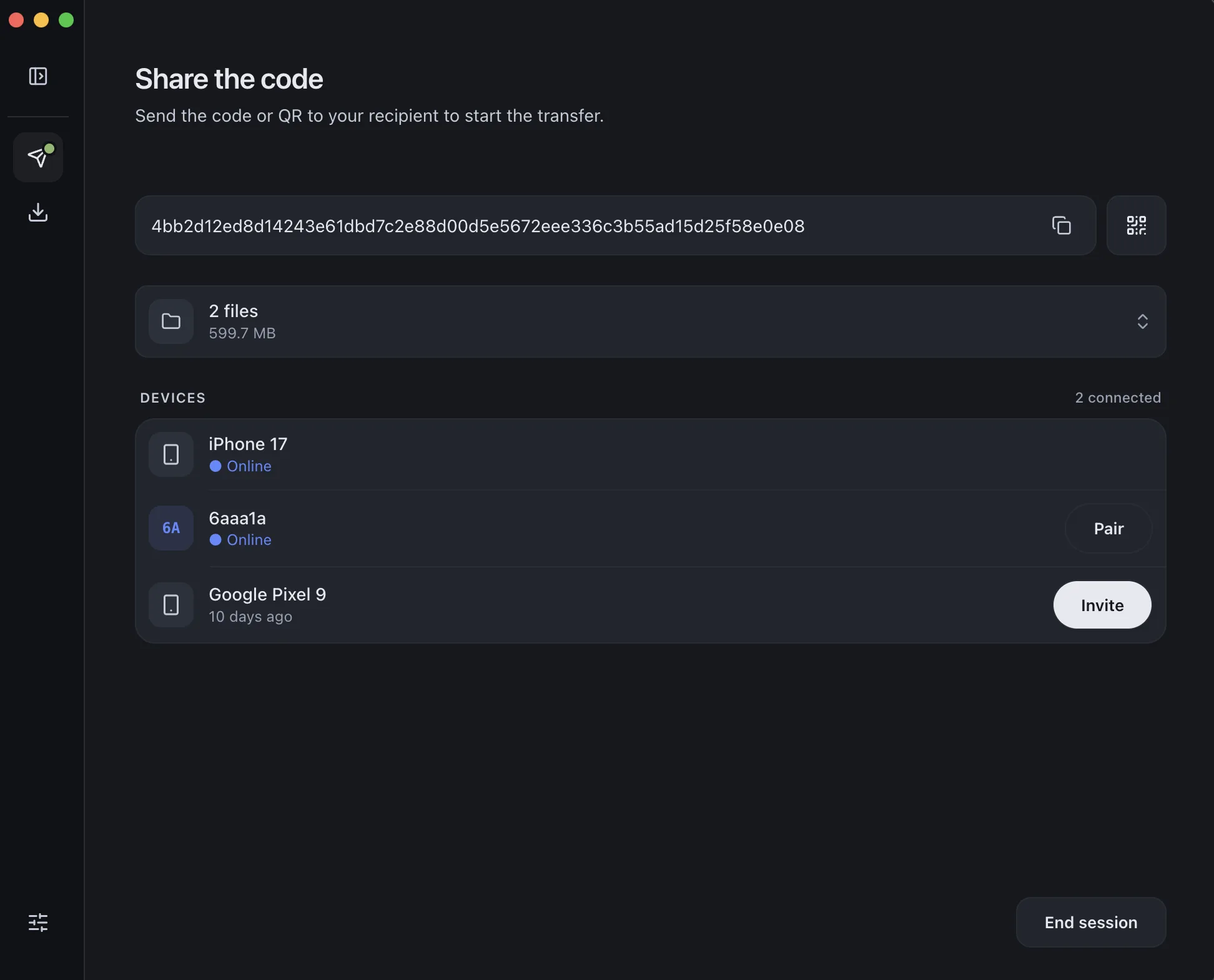
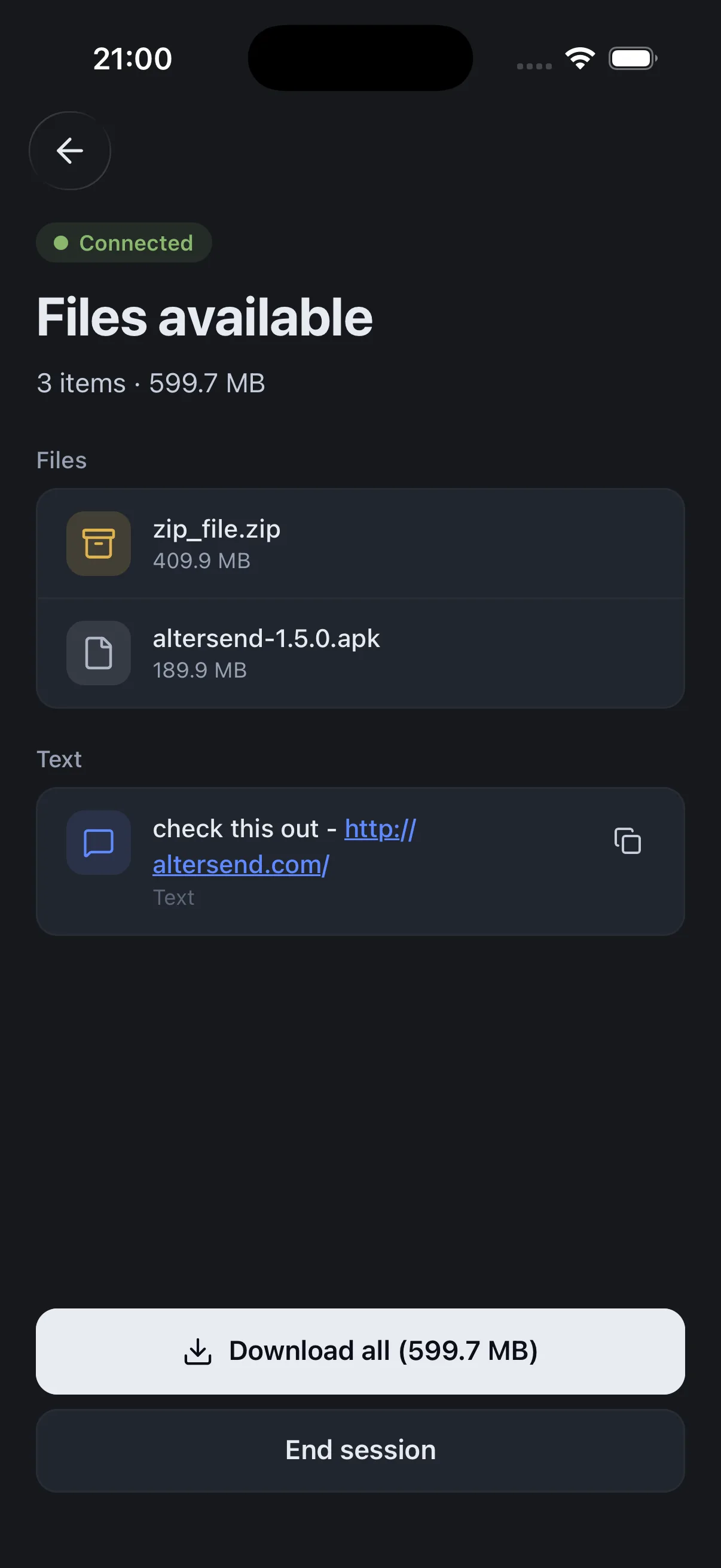
Google: Quick Share with WindowsInstall the free app on both devices, pair once with a QR scan, then send files or whole folders directly, end-to-end encrypted. It works on the same Wi-Fi or across the internet, and nothing is stored on a server.
The catch: Both devices need the app and must be online at the same time: it is a live transfer, not a link that waits for days. If the devices cannot connect directly, an encrypted relay carries the transfer, capped at 20 GB between apps and 10 GB for browser links.
Download AlterSendMicrosoft's Phone Link pairs a Windows PC with the Link to Windows app on Android 10 or later.
The catch: Windows only, and Microsoft asks for both devices on the same Wi-Fi network.
Microsoft: Phone Link requirements and setupWe make AlterSend, so weigh that option accordingly. For an Android phone and a Windows PC on the same desk, Quick Share is free and already built by Google.
Send between any phone and any computer with AlterSend
- 01Install on both devicesFree on Windows, Mac, Linux, iPhone and Android. No account.
- 02Scan a code to pairOne QR scan connects them. Pair once and they remember each other.
- 03Send, directlyFiles and whole folders go straight across, end-to-end encrypted. Same Wi-Fi or across the internet.