
LocalSend not finding devices?
Almost always the cause is the network between the two devices, not LocalSend. Here are seven fixes from LocalSend's own documentation, in the order to try them.
Why LocalSend can't see the other device
LocalSend finds nearby devices by sending a UDP multicast message to the address 224.0.0.167 on port 53317. When multicast does not get through, it falls back to sending HTTP requests to the local IP addresses on the same port. Either way, both devices must be on the same local network, and nothing in between can block that port.
So when a device is missing, one of four things is usually wrong: the two devices are not on the same network, the router stops them talking to each other, a firewall or VPN on one of them is in the way, or the operating system has not given LocalSend permission to use the local network.
Fixes and port numbers are from LocalSend's own README and protocol document, read on November 16, 2026.
Seven fixes, in the order to try them
Start at the top. The first two cost nothing and fix most cases.
If the manual IP works but automatic discovery never does, the multicast message is probably being blocked. Look again at AP isolation, the firewall and any VPN.
If it still won't connect
LocalSend is local only by design. When the devices are on different networks, no setting will make it work.
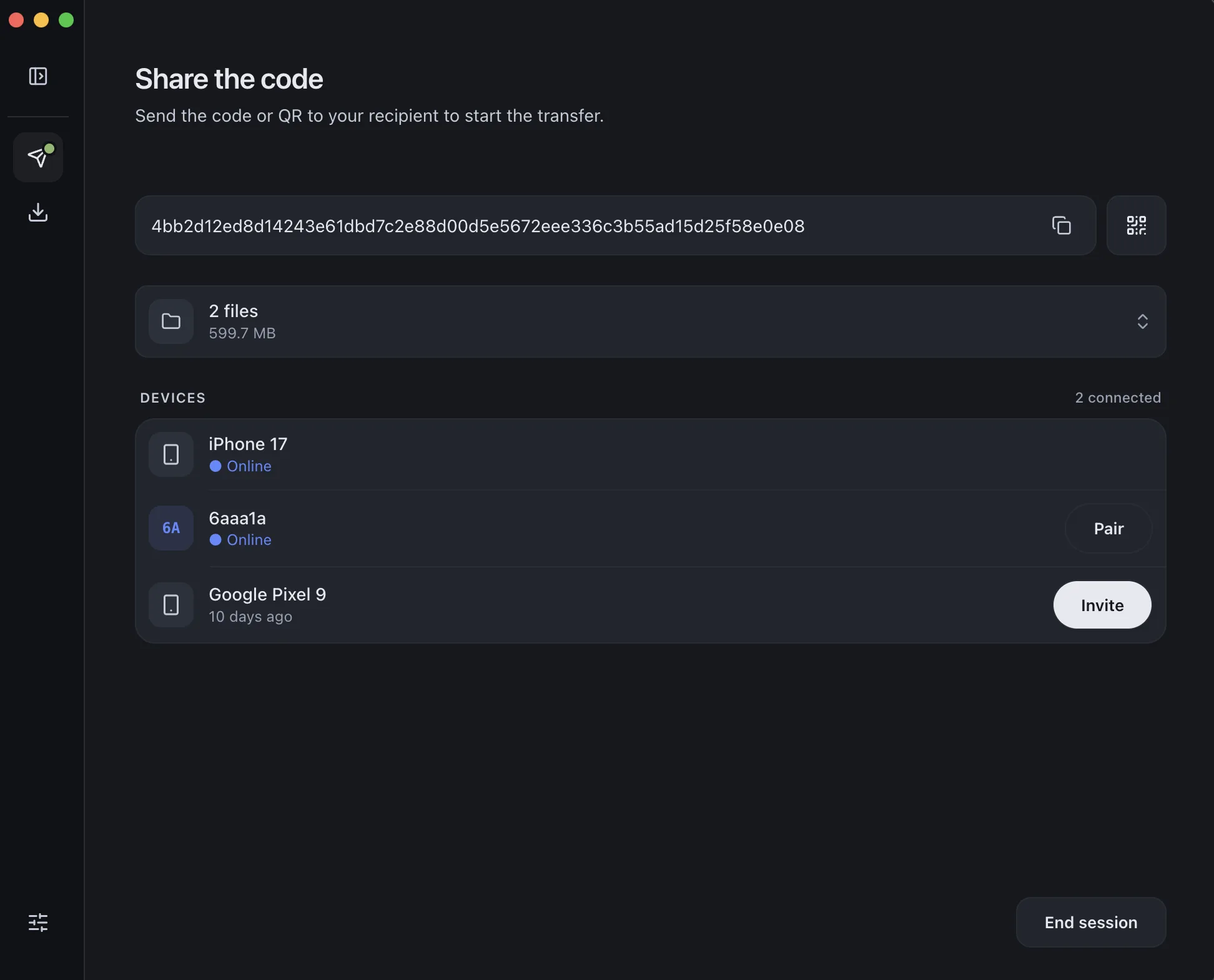
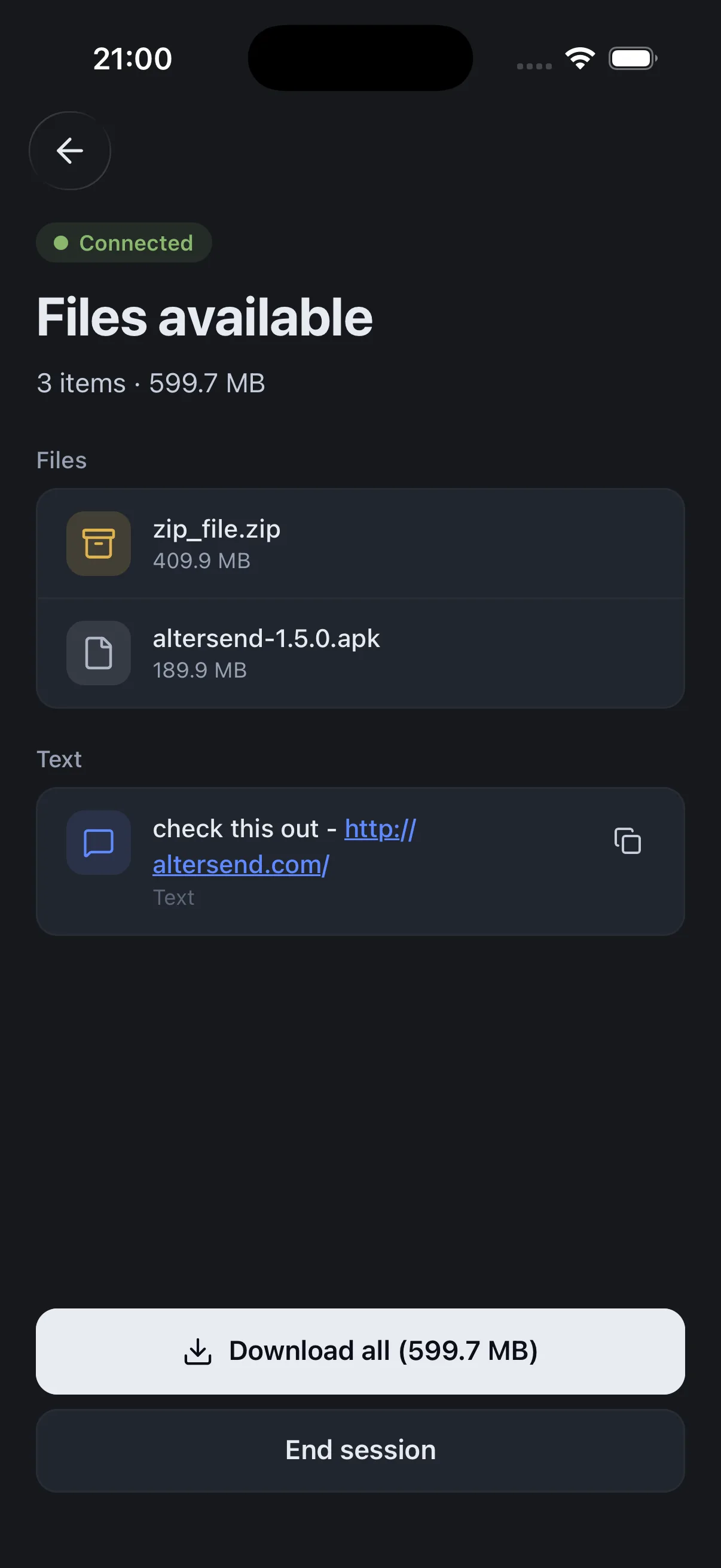
AlterSend connects devices by pairing them with a QR scan, so it does not depend on the two devices finding each other on one local network. Files go directly between the devices, end-to-end encrypted, and nothing is stored on a server.
The catch: You need the app on both devices, and both must be open during the transfer. If the devices cannot connect directly, an encrypted relay carries the transfer instead, capped at 20 GB between apps. LocalSend needs no internet at all; AlterSend uses it to connect.
Download AlterSendWe make AlterSend, so weigh that accordingly. For two devices on one home network, the fixes above usually get LocalSend working, and it is a good free app.
Send between any two devices with AlterSend
- 01Install on both devicesFree on Windows, Mac, Linux, iPhone and Android.
- 02Scan a code to pairOne QR scan, or a six-character join code, connects them. Pair once and they remember each other.
- 03Send, directlyFiles and whole folders go straight across, encrypted. Same Wi-Fi or opposite sides of the world.